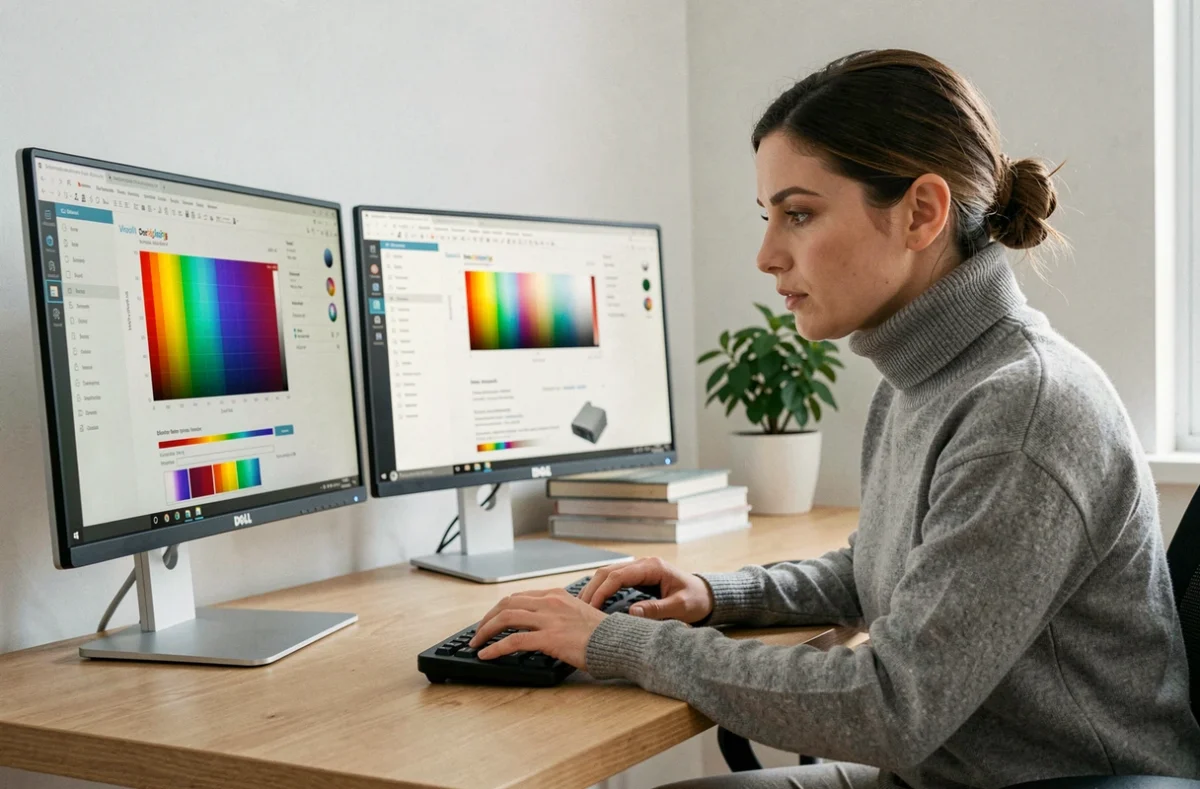
A Dell monitor’s spec sheet isn’t enough to make a decision. Two monitors with the same QHD resolution and screen size can differ dramatically in total cost of ownership: USB-C power delivery, warranty length, replacement terms and annual energy consumption. These are the factors that separate a worthwhile purchase from a recurring expense.
Total cost of ownership for a Dell monitor: beyond the purchase price
Comparing two Dell monitors based on list price alone means ignoring half the equation. USB-C connectivity, for example, turns some monitors into power hubs that can charge a laptop while transmitting video and data over a single cable.
Power delivery varies by model. Dell advertises up to 90 W for the Pro 34 P3425WE and 65 W for the S2725DC. A recent ultrabook requiring 65 W will be fine with the latter, but a 15-inch business laptop may need the former’s 90 W. If the power output is insufficient, you’ll need to keep a separate charger, negating the benefit of a single cable and adding another accessory to your workstation.
Differences between Dell UltraSharp and S series monitors also extend to warranties and after-sales service. Several Dell product pages distinguish between hardware warranties and advanced exchange service, which may depend on the country and the diagnosis. Between two similarly priced models, one offering advanced replacement with no return shipping fees can save a considerable amount of downtime in a business environment.
OLED warranty and burn-in: a pitfall with high-end Dell monitors
Burn-in coverage varies from one OLED model to another, not just from one product line to another. Dell lists burn-in protection for some Alienware monitors, but the duration and terms aren’t consistent across its catalog.
For gaming, dynamic content helps limit the risk of image retention. With intensive office use, the taskbar, toolbars and window borders can remain on screen for hours. If you’re choosing an OLED monitor for this type of use, check the exact warranty for that model, its built-in software protections (pixel refresh, automatic dimming of static areas) and the terms that apply in the country where you’re buying it.
Don’t confuse the general warranty period with specific burn-in coverage. Some manufacturers cover the panel for three years but limit burn-in coverage to one year, or exclude it for non-residential use.
Environmental certifications and eye comfort: which labels matter
Recent Dell product pages list a range of certifications: TCO Certified, EPEAT, ENERGY STAR and TÜV for eye comfort. These labels aren’t all equivalent, and, more importantly, availability depends on the exact model and country.
- TCO Certified covers ergonomic, environmental and social criteria. Its presence means blue-light filtering has been laboratory-tested, rather than simply being a software mode enabled by the manufacturer.
- EPEAT assesses a product’s life cycle (materials, recyclability and energy consumption). Availability varies by country: a model registered with EPEAT in the United States isn’t necessarily registered in France.
- ENERGY STAR certifies power consumption in standby and active modes. For a monitor used eight hours a day, five days a week, the difference in energy consumption between a certified and non-certified model can add up to a measurable extra cost over several years.
- TÜV eye comfort certification indicates reduced blue-light emissions and no perceptible flicker. For extended office use, it’s a more reliable comfort criterion than a simple marketing-driven “eye care” mode.
We recommend checking the certification for the specific model rather than assuming it applies to the whole product line. An ENERGY STAR-certified Dell S model doesn’t guarantee that the next S model will be certified too.
Dell monitors for gaming, office work or creative work: the right use, the right product line
Choosing a Dell monitor comes down to three user profiles, each with its own technical requirements.
Gaming and Alienware monitors
The Alienware range is aimed at demanding gamers. Response time, refresh rate and compatibility with adaptive sync technologies (FreeSync, G-Sync) are the top priorities. An Alienware OLED panel delivers higher native contrast than any VA or IPS panel, but you’ll need to check its burn-in warranty, as discussed above.
Office work and Dell Pro or S series monitors
For a fixed workstation, USB-C connectivity with built-in charging, QHD or 4K resolution and stand ergonomics (height adjustment, tilt and swivel) matter more than refresh rate. A Dell Pro such as the P3425WE can replace a basic docking station thanks to its USB-C ports with power delivery up to 90 W and additional video outputs.
Graphic design and the UltraSharp range
Color accuracy, sRGB and DCI-P3 color-space coverage, and factory calibration set UltraSharp monitors apart. For photo editing or video production, color-space coverage and factory calibration documented on the product page remain the most reliable indicators to check before buying.

Dell monitor budget: balancing screen size, resolution and connectivity
With a fixed budget, you’ll need to make trade-offs. A 27-inch QHD monitor with USB-C and good ergonomics will be more useful day to day than a 32-inch 4K model without a USB hub and with a basic stand.
- Under 300 euros, the 27-inch QHD S series offers the best balance for office work, with decent connectivity.
- Between 300 and 600 euros, Dell Pro monitors include a USB-C hub and a fully adjustable stand, eliminating the cost of a docking station.
- Above that, UltraSharp and Alienware OLED monitors meet color-accuracy or gaming requirements, where the cost is justified by eliminating peripheral equipment (colorimeter, docking station, separate charger).
The most expensive monitor in the catalog isn’t the best choice for everyone. A monitor with USB-C power delivery that matches your laptop, a warranty that covers your actual use and certifications valid in your country is a more sensible investment than a premium panel whose features will go unused.